Image Compressor
Reduce JPEG and WebP file size with adjustable quality.
Image ERITHRA
Frame a photo with a colored border of your chosen width.
Loading workspace…
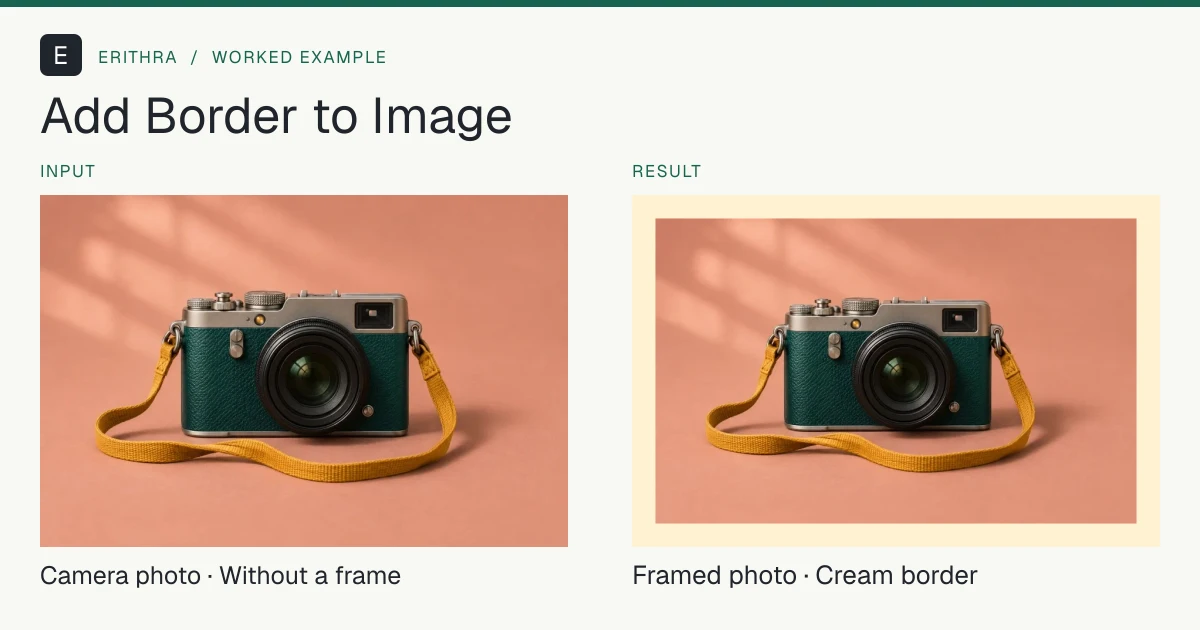
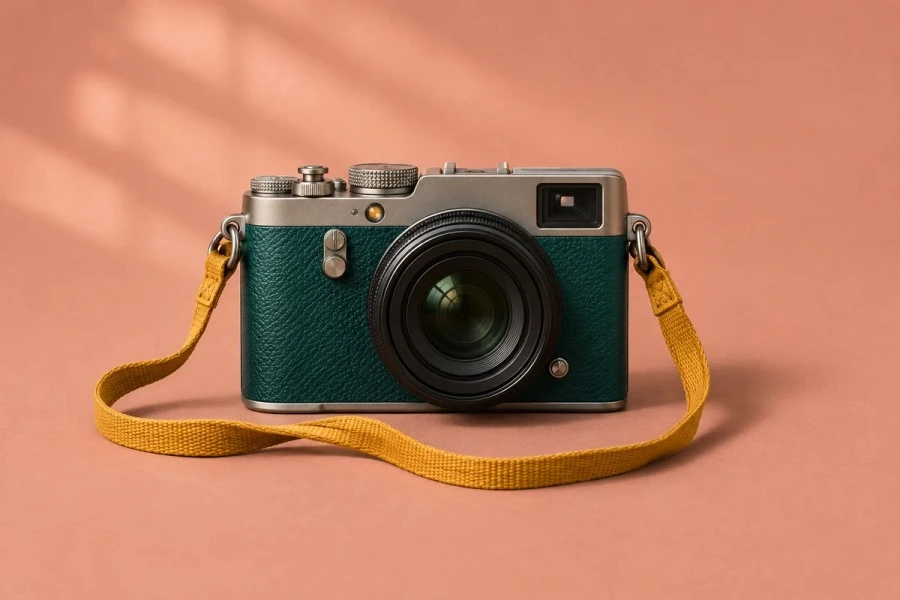
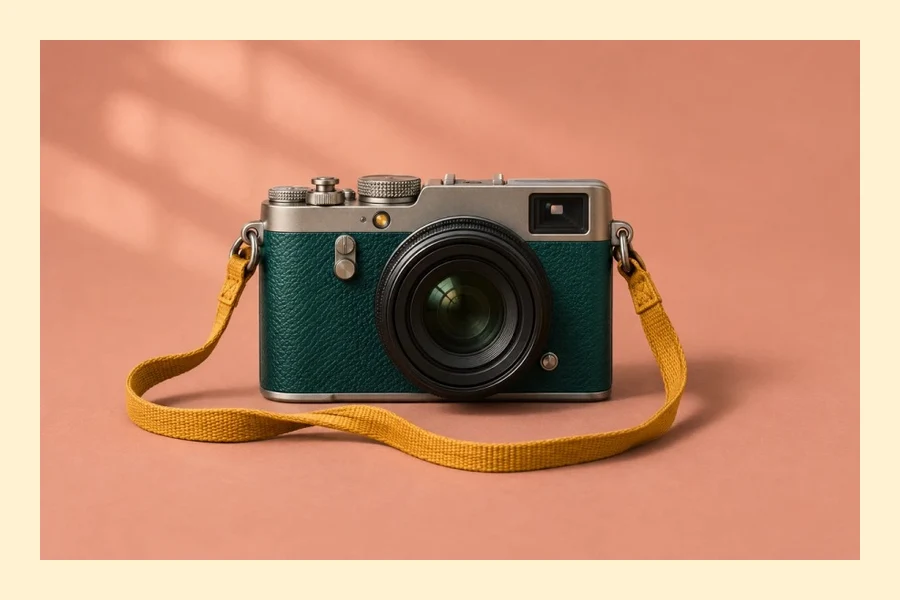
Add an outer frame to a photo or illustration and check the resulting pixel size.
Add a colored border around an image →Adds pixels outside the source image. The download is a PNG.
Files and generated results exist only for this tab session. Download any result you want to keep before leaving the page. Browsers may use temporary memory or disk cache while processing.
Compare the original and framed image before downloading the PNG.
The border sits outside the original image. Transparent areas inside the original remain transparent.
Reduce JPEG and WebP file size with adjustable quality.
ImageSet exact dimensions while keeping your image in proportion.
ImageConvert JPEG images to lossless PNG files.
ImageTurn PNG images into JPEGs with a clean white background.
Image