
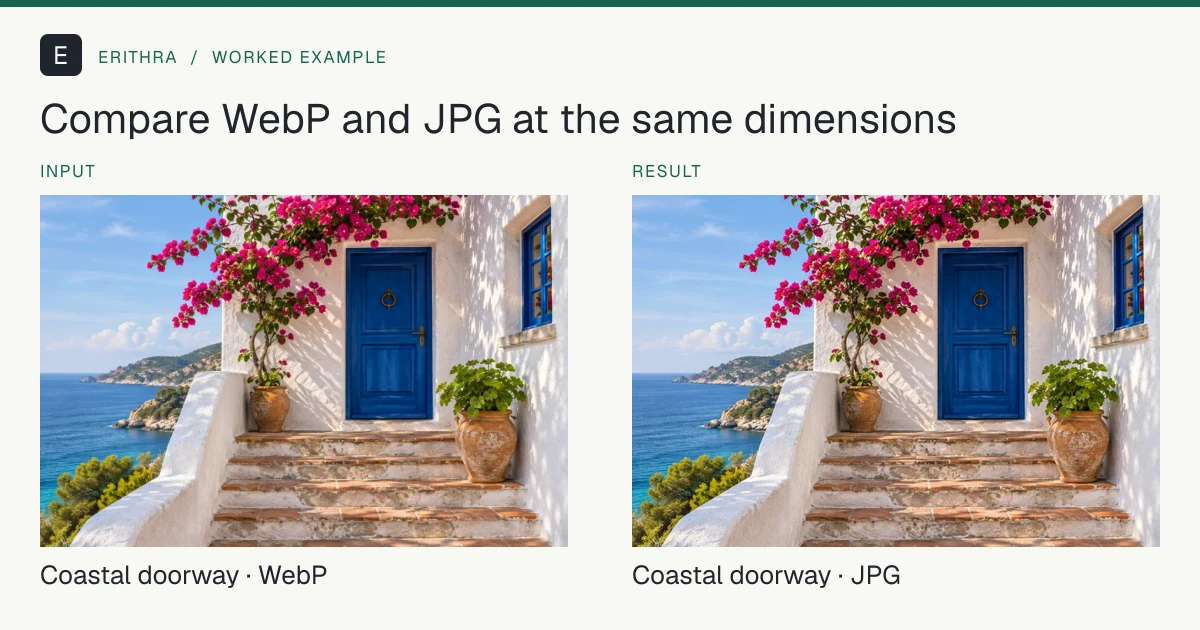
Use WebP when it gives your website a smaller file at a quality you can live with. Use JPEG when the destination explicitly requires it. Keep the original photo for future edits so you can make both exports from the same source.
Run the test with one image
- Open JPG to WebP and choose Try a sample image. ERITHRA loads a 960 × 640 JPEG so you can practice without using your own photos.
- Process the sample at quality 80. In the result, check that Before and After both say 960 × 640. Comparing images at the same dimensions isolates the format and encoding settings from resizing.
- Use Compare with slider, then open each version to check details that a small preview can hide. Look at lettering, high-contrast edges, and smooth areas where compression can produce banding. Read the file sizes next to the previews.
- Repeat at quality 65 and 90. Keep the smallest export that still looks good at the size visitors will see. Start again with your real photo before choosing a setting for a batch.
What the sample produced
We ran the live ERITHRA converter in Microsoft Edge 157 with the built-in sample on 10 November 2026. The JPEG was 155,512 bytes. Each WebP kept the original 960 × 640 dimensions.
| WebP quality setting | Output size | Smaller than the sample JPEG |
|---|---|---|
| 65 | 45,924 bytes | 70.5% |
| 80 | 72,472 bytes | 53.4% |
| 90 | 129,780 bytes | 16.5% |
To calculate the saving, subtract the output bytes from the input bytes, then divide by the input bytes. The quality 80 export was almost 27 KB larger than quality 65 on this sample. Compare the two at your intended display size to decide whether the difference in appearance is worth those bytes. Source images and browser encoders can produce different results.
Choose based on where the file goes
| Destination | What to check |
|---|---|
| Website hero | Inspect the actual page on mobile and desktop. If the photo is wider than the design calls for, use the Image Resizer before comparing formats. |
| Form requiring a JPEG | Use WebP to JPG and confirm the resulting file opens. Transparent areas become white and an animated source becomes a still image. |
| Form with a hard size cap | Use Compress Image to a Target Size and verify the final file size and dimensions against the form’s rules. |
| Original or working file | Keep the camera file or highest-quality original. Export a fresh copy when you need a different format. |
WebP supports lossless and lossy encoding, transparency, and animation as a format. This particular JPG to WebP workflow produces a still image. Converting it back to JPEG adds another encoding step and cannot recover detail lost in the first conversion. Google WebP format overview
When the WebP comes out larger
This can happen with an already compressed JPEG or a high quality setting. Re-run the test at a lower quality and inspect it at the intended display size. If the JPEG is still smaller at an acceptable quality, serve that JPEG. A useful export decision depends on the actual two files.